Building a form
The builder is where every form is made and changed, whether you started it
blank or imported it from a PDF. New Form on the
forms list opens a blank one; the pencil icon on a form's row opens an
existing one.
Building is free. So is everything on this page.
The form's settings
The top panel holds what applies to the form as a whole.
| Setting | What it does |
|---|---|
| Form title | Required, up to 200 characters. Shown at the top of the fill page and on the forms list |
| Description | Optional. Shown under the title on the fill page |
| Who can fill this form? | Public, anyone with the link, or Private, signed-in members only. See Publishing and sharing |
| Submissions may be sent for e-signature | Lets a finished submission be sent out to be signed. See Signatures |
| Who signs | Appears when e-signature is on. Name each party, such as Landlord and Tenant, and each gets their own captioned signature line. Up to 10 parties |
| Email me when this form is submitted | On by default. See notifications |
| Appearance | Accent colour, header line and footer line. See Appearance |
Fields
Each question is a field. Add field adds one at the bottom; the arrows move a
field up or down, and the bin removes it. A form always keeps at least one
field, and can hold up to 150.
Every field has a Label, which is the question as people read it, and a Type.
| Type | People fill it in as | Notes |
|---|---|---|
| Text | A single line | The default |
| Paragraph | A larger box, several lines | For explanations and addresses |
| A single line, email keyboard on phones | ||
| Phone | A single line, phone keypad on phones | |
| Date | A date picker | |
| Number | A single line that accepts digits, $, commas, a decimal point and a minus sign | Currency amounts work as typed |
| Dropdown | A list to choose one from | Enter the choices under Options, one per line, up to 50 |
| Checkbox | A Yes or No choice | A lone acknowledgement, such as "I agree to the terms" |
A single answer can be up to 5,000 characters.
Required
Tick Required and the form will not move past that question until it is
answered. On a form split into sections, the check happens when the person
presses Next, so they find out on the step they are on, not at the end.
Sensitive
Tick Sensitive for Social Security numbers, tax IDs, bank and routing numbers, and anything else that should not sit in plain view.
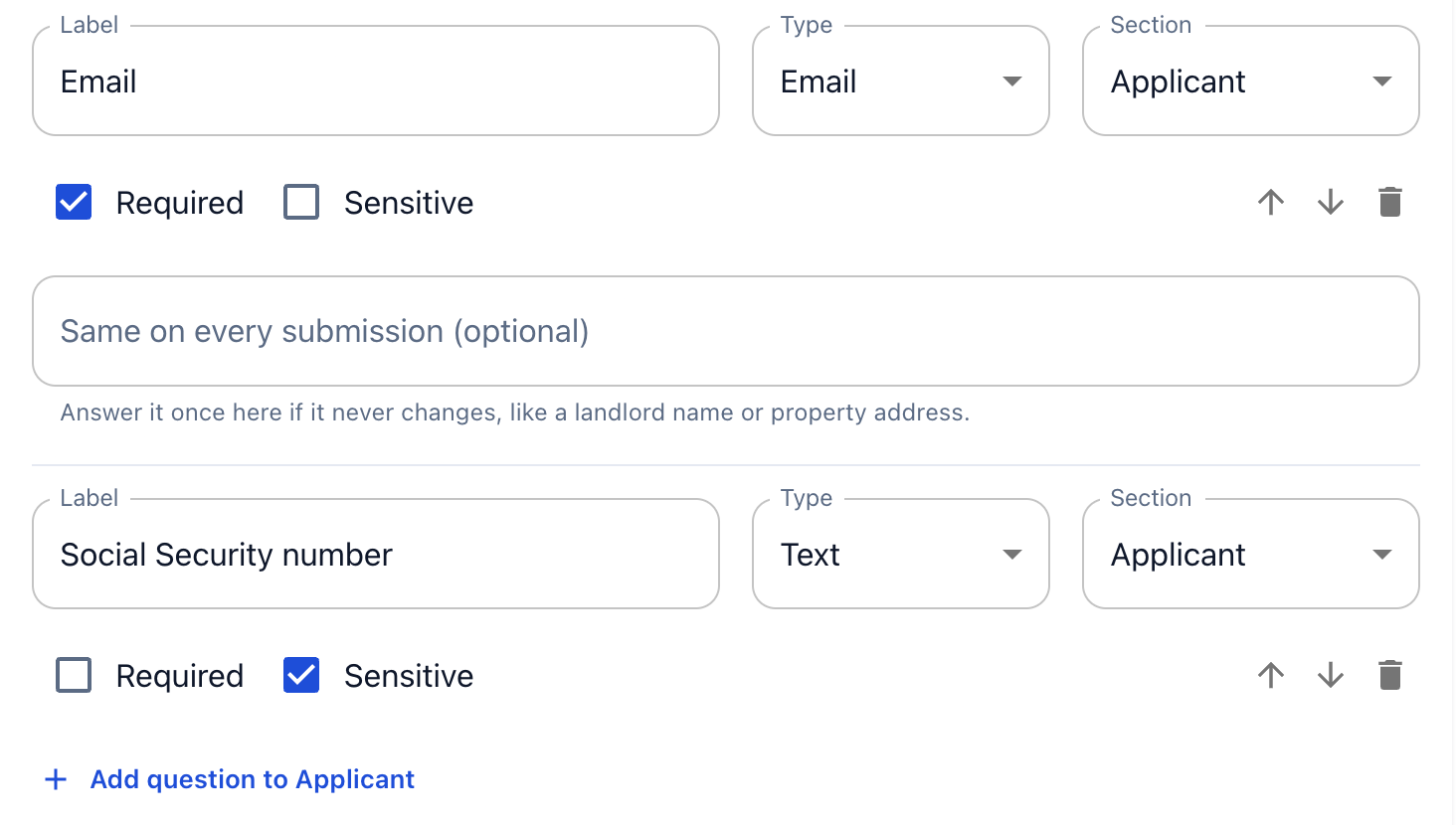 Ticking Sensitive takes away the "Same on every submission" box: a sensitive answer is never preset.
A sensitive answer is:
- typed into a masked box with a show button, much like a password (dates keep their date picker);
- stored encrypted;
- shown masked to you and your colleagues, with every reveal recorded;
- never saved on the filler's device while they work, unlike their other answers.
A sensitive field cannot have a preset answer and cannot be prefilled in a link, since both of those are shown to whoever opens the form. Ticking Sensitive clears any preset the field had.
See Sensitive fields for how revealing works.
Same on every submission
Each field also has an optional Same on every submission box. Anything you enter there is filled in and locked for everyone. See Preset answers.
Sections
A long form is easier to fill one part at a time. Sections split it into
steps: the person filling it sees one section, presses Next, and a progress
bar shows how far they are.
Add sectionin the Sections panel, and give it a title.- In each field, choose its Section from the dropdown that now appears.
- Reorder sections with the arrows.
Questions not assigned to any section are shown first, as a step called General. In the builder they are listed under Unassigned questions. Deleting a section does not delete its questions; they become unassigned.
Multiple entries
Some questions come once per thing: once per vehicle, once per pet, once per
previous address. Tick Multiple entries on a section and the person filling
it gets an Add another button for it, up to 10 entries.
One entry is a… names the thing (Vehicle, Pet), so the button reads Add another vehicle and the entries are headed Vehicle 1, Vehicle 2.
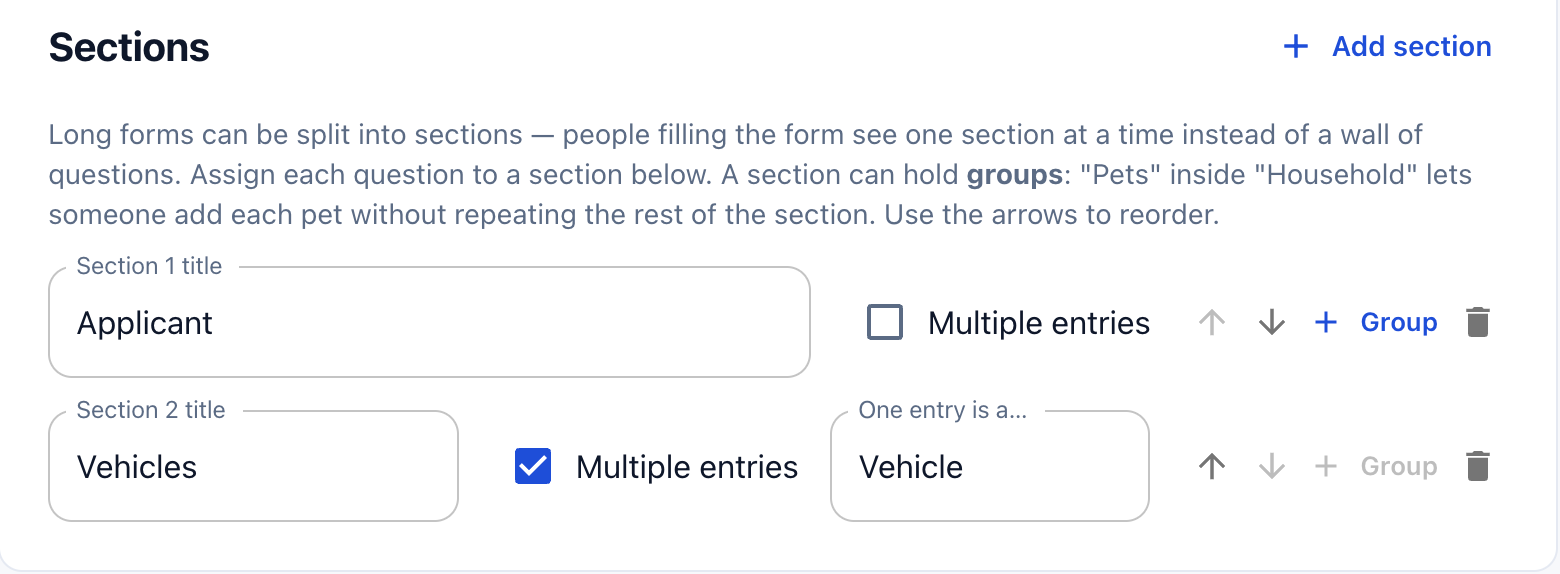 Vehicles repeats, so the filler can add a second car without the form asking for one.
Required questions are required in the first entry only. Extra entries are the filler's choice, so an empty "Vehicle 2" is never forced on anyone.
Groups
A section can hold groups: smaller repeatable blocks inside it. "Pets"
inside "Household" lets someone add each pet without repeating the rest of
the household questions. Press Group on a section to add one, then assign
questions to it like any section.
| Rule | Why |
|---|---|
| Groups nest one level deep only | A group cannot hold another group |
| A section that holds groups cannot itself repeat | Mark the group as multiple entries instead |
| A section that repeats cannot hold groups | Turn off multiple entries first |
A group shares its parent section's step on the fill page, under its own heading.
Appearance
Three settings style the PDF this form produces:
| Setting | Used for |
|---|---|
| Accent colour | The title banner and section bars on the PDF |
| Header line | A line of text at the top |
| Footer line | A line of text at the bottom |
For a form imported from a PDF, the panel is called Page & summary style. It styles the generated Summary PDF and any addendum page, but the filled original keeps its own design. See PDFs of a submission.
Team branding
A form owned by a team with branding switched on wears that branding by default: the team's logo across the top of the fill page, its colour on the buttons and progress bar, and the same on the PDF.
The builder then shows a Use (team name)'s branding switch, on by default.
- On: the form follows the team. Change the team's branding later and this form changes with it, including PDFs downloaded again for old submissions.
- Off: the form takes the team's current colour and wording as a starting point, and you can change them for this form alone. Turning it back on hands the form back to the team.
Personal and CivicPort community workspaces have no team branding, so the switch does not appear and the fill page uses the standard FormsUI look.
Saving
| Button | When | Result |
|---|---|---|
Create draft | A new form | Saves it as a draft and returns to the forms list |
Save changes | An existing form | Saves and returns to the forms list |
Cancel | Any time | Leaves without saving |
Nothing you type is lost to an expired session or a closed tab. The builder
keeps a copy of unsaved work on your device, and when you come back it says
Restored unsaved changes from this device. Save to keep them, or
Discard to go back to the saved version.
Editing a published form
Once a form is published its questions are locked: labels, types, options, sections and the required and sensitive ticks. Every submission already filed was answered against those exact questions, and changing them underneath would change what the answers mean.
What you can still change on a published form:
- the title, description and appearance;
- who can fill it (public or private);
- who is notified of submissions;
- the e-signature settings;
- preset answers.
To change a question, press Back to draft in the builder or on the forms
list. The form's link stops working until you publish it again, and anyone who
opens it meanwhile is told it is not available. Submissions already filed keep
the questions they were answered against.
Forms imported from a PDF
An imported form has two extra tools in the builder: Download fillable PDF,
and Check against the original PDF. Both are described in
Importing a PDF.