Send a document for signature
Send any PDF you already have, a lease, an addendum, a SOW, to everyone who has to sign it. FormsUI reads the document to find who it asks to sign and what it leaves blank, so you name the signers and fill in the terms rather than set up fields by hand.
Start from Documents > Send for signature.
Steps
- Send from. Pick the workspace. The send is paid from its credit.
- Choose a PDF, or pick one under Or start from a saved document.
- Document title. What the send is called in the email and in your documents list. It defaults to the file name.
- Fill in what you already know, if the document has blanks.
- Who needs to sign. One row per signer.
- Optionally, Verify each signer by SMS, and choose the signing order.
- Preview to see exactly what will go out.
- Send for signature.
Reading the document when you choose it is free and changes nothing. If it can't be read, you still get a single signer row and the send still works.
Who needs to sign
When you choose a file, FormsUI looks for the document's signature blocks and what each is captioned. A lease answers with "Landlord", "Tenant 1", "Tenant 2", and the page opens with a row for each, waiting for you to fill in who that person is.
| What the document has | What you see |
|---|---|
| Named signature blocks | "This document asks for 3 signatures: Landlord, Tenant 1, Tenant 2. Fill in who each one is." |
| Signature lines with no names | "This document has 2 signature lines but doesn't say whose. Name the parties yourself." |
| No signature blocks | "This document doesn't mark where to sign, signatures will go at the end." Add everyone who needs to sign |
Each row has:
| Field | Notes |
|---|---|
| Signing as | The party on the document, such as Landlord or Tenant 1. Filled in from the document where it names its own, editable where it doesn't |
| Required on the first row | |
| Name | Optional |
| Mobile number | Only when SMS verification is on, and then required |
Signing as is what puts each signature on the right line. The person you list as Tenant 2 gets the field the document drew for Tenant 2, whatever order you typed the rows in. Fill it in rather than relying on row order.
Where a document marks no signature spot, the signature goes at the bottom of the last page. Witness and notary lines are not treated as signer lines.
Add up to 10 signers with Add another signer. The same email address twice is only invited once. A blank row at the end is ignored, so you can add a row, change your mind, and still send.
Filling in what you already know
The person who wrote the document already knows the client, the fee and the dates. Asking the signer to type them back is how a signed copy comes home wrong. So FormsUI finds the document's blanks and lets you fill them before it goes out.
It looks for blanks in three places:
| Kind of blank | Example |
|---|---|
| A fillable form field in the PDF | A text box, a dropdown, a checkbox or a radio group the PDF already has |
| A placeholder you left in the document | {{client_name}}, <<fee>>, [[start_date]] |
| A ruled blank after a label | Client Name: ______________ |
Blanks are grouped by page. Each is asked for as the kind of answer its label suggests: a date picker for a date, a dropdown for a choice, a tick box for a checkbox. A placeholder says which page it is on, and a blank line with no label near it says so, so you can find it on the page.
Signature lines are never offered as blanks. The signer's own line stays theirs.
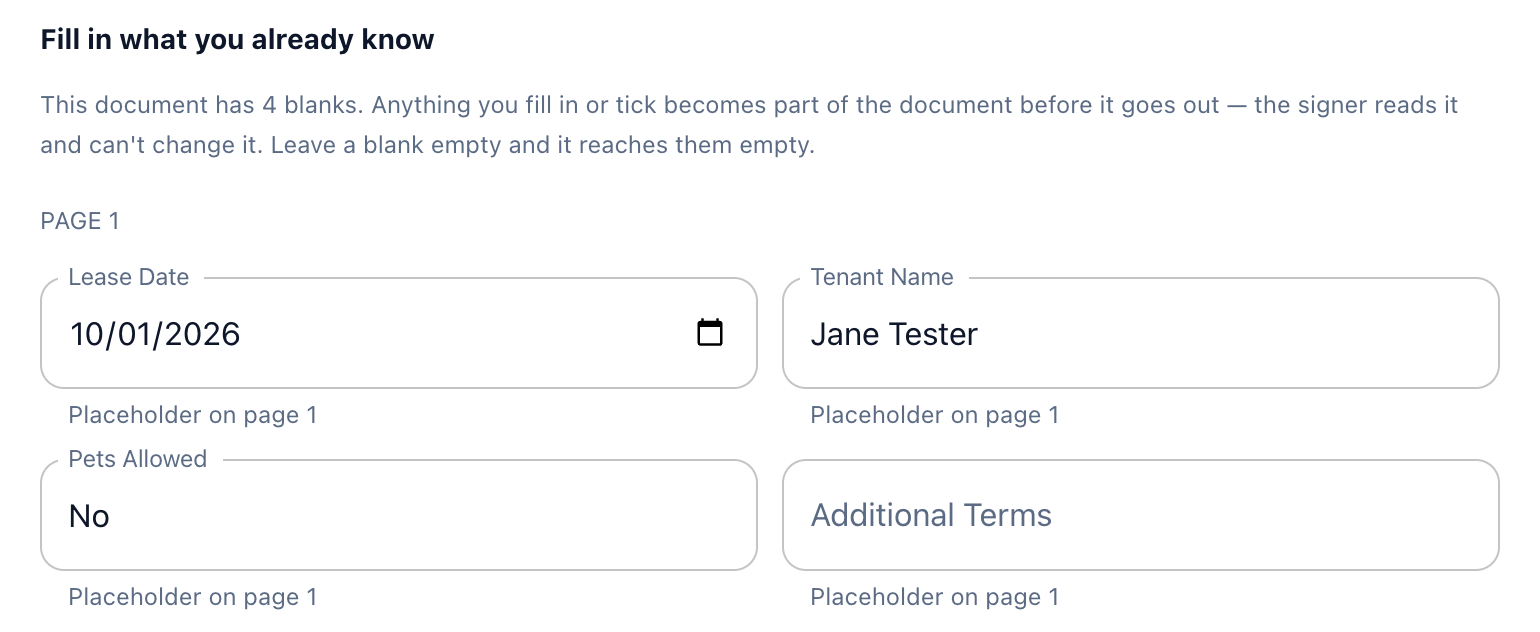 Each placeholder becomes a field of the right kind, a date picker for the lease date. Additional Terms is left empty, so it reaches the signer empty.
What happens to your values
Your values are written into the page itself, not attached as fields on top. The signer reads them as part of the document and cannot change them, so what they sign is final. Dates are written the way documents write them (09/05/2026), not the way a date picker stores them.
Leave a blank empty and it reaches the signer empty. That is how you say "the signer fills this in". An unticked box stays a box they can tick.
Values are written before anything is charged. If they can't be written into the document, the send is refused and no credit is used. If the document you send no longer has the blanks your values were for, the send is refused rather than going out with everything you typed quietly dropped.
Preview
Because values are written at positions read off the page, Preview is where you see where each one actually landed. It opens, in a new tab, the exact PDF the signers will receive, with your values filled in. It is free: nothing is sent and no credit is used.
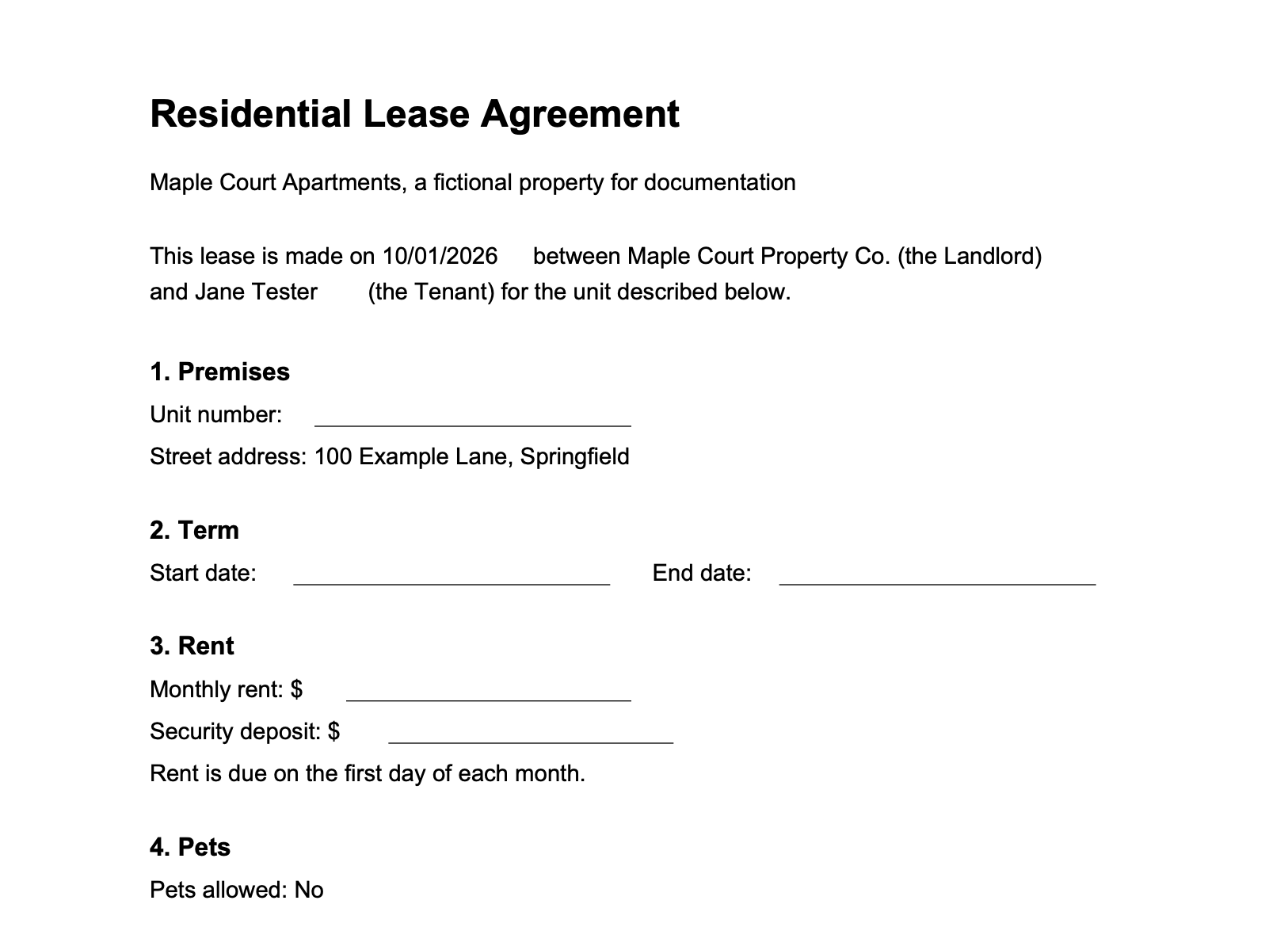 The values from the form above, written into the lease where its placeholders were. The ruled blanks stay for the signer to fill in.
Check it every time you have filled in blanks.
SMS verification
Verify each signer by SMS texts each signer a code they must enter before they can open the document: proof the person signing holds that phone. It costs extra per signer, shown next to the option and added to the Send button.
A 10-digit number is read as a US number.
Signing order
With more than one signer you choose the order.
| Option | Behaviour |
|---|---|
| Everyone at once | All signers are invited together. Nobody waits on anybody. The default |
| One at a time, in the order above | The first signer is invited; the next is invited only when the one before has signed |
Use one at a time only where one party genuinely has to sign before the next sees it, such as a countersignature. Everyone behind the current signer shows as "Signs later" and can't be reminded until it is their turn.
Saved documents
A workspace sends the same few documents over and over. Keep this document for next time saves the uploaded PDF so the next send can start from Or start from a saved document instead of from somebody's Downloads folder.
Only the document is kept, never the values. This send's numbers belong to this send, and a saved answer is the one that quietly goes out stale.
The delete button beside a chosen saved document stops keeping it. Anything already sent from it is unaffected.
Saved documents are shared with Fill out a PDF.
After you send
The confirmation appears beside the Send button and says how much credit the workspace has left. The document appears in your documents list, and each signer gets an email from the signature provider with a link to sign.
If the workspace doesn't have enough credit, the send is refused with the price and a pointer to buy credits. If sending fails on the provider's side, the credit is refunded and the message says no signature was used.
From CivicPort
CivicPort can open this page with the first signer's email and name already filled in, so an admin can start from a resident's profile.